
My Overengineered Dev Env Setup
Introduction
We all do it. We spend hours tweaking our development environment instead of actually writing code. Here is my latest iteration of the “perfect” setup.
The Stack
OpenCode
OpenCode is the open-source AI coding agent I use as my harness of choice. It’s excellent, feature-rich, connects with any provider, is rigorously under development with new features released every day, and is extensively hackable.
Portal
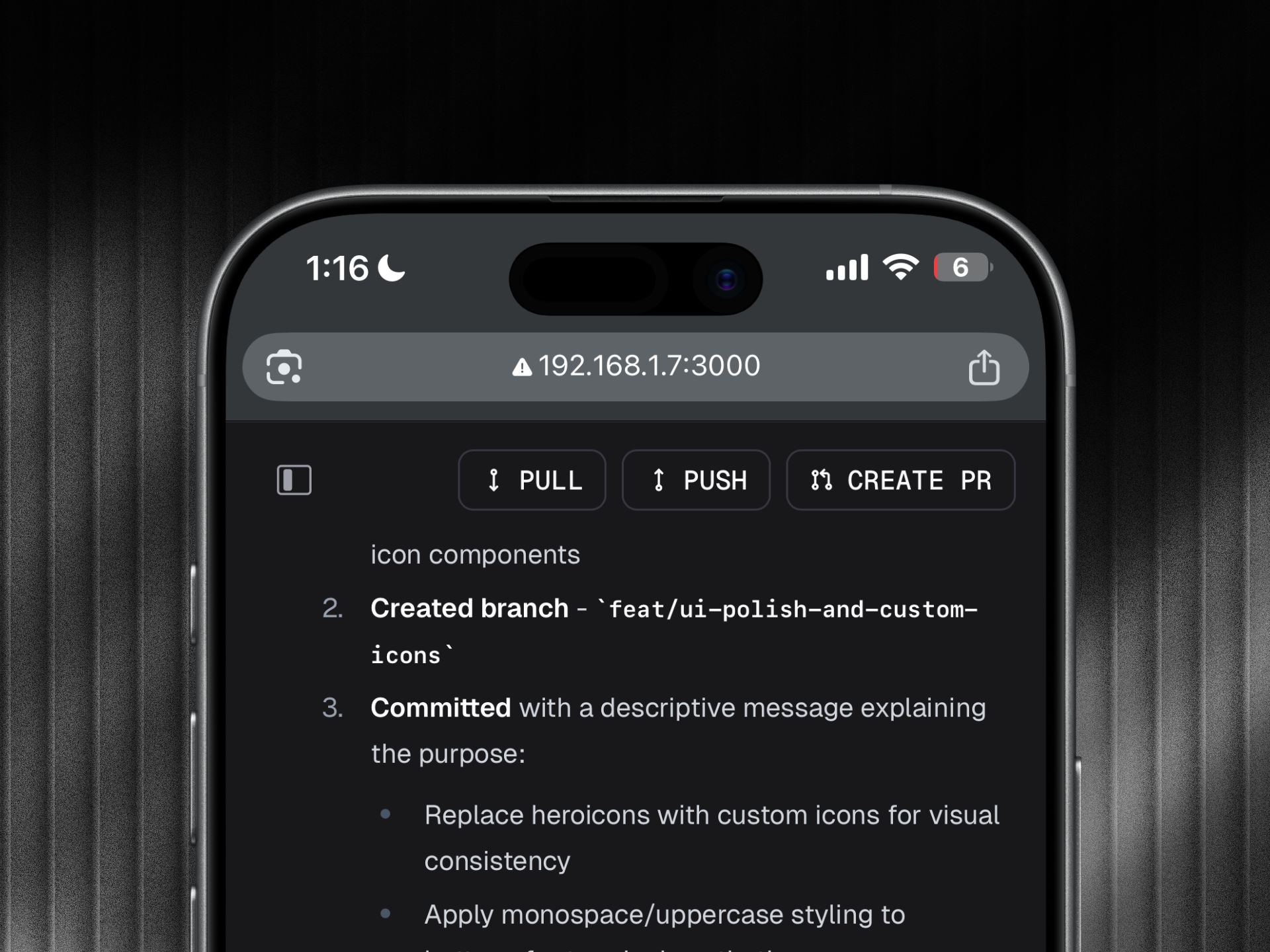
This is a web app I’m building that connects with the OpenCode server and provides a batteries-included, intuitive, mobile-first web UI, which allows me to use OpenCode from anywhere using my mobile or any other internet-connected device.
Tailscale
Tailscale is a Zero Trust identity-based connectivity platform that replaces your legacy VPN, SASE, and PAM, connecting remote teams, multi-cloud environments, CI/CD pipelines, Edge & IoT devices, and AI workloads. I use it to securely create a network between my devices and servers without port forwarding or any network hassle.
It is very important to set up networking correctly; otherwise, you can accidentally expose OpenCode or Portal to the open internet, which is highly insecure.
VPS
I prefer to use a high-end server so that all of my tasks run smoothly.
Server Configuration
Setup Instructions
Setting up this environment requires careful configuration to ensure security and reliability. Here’s a high-level overview:
-
Provision VPS: Choose a provider like Hetzner or DigitalOcean. I recommend at least 4 vCPU, 16GB RAM, and 128GB SSD for smooth performance.
-
Install Tailscale: Follow the official Tailscale installation guide for your server’s OS. Create a tailnet and add the server as a node.
-
Install OpenCode: Clone the OpenCode repository and follow the installation instructions. Configure it to run as a service.
-
Install Portal: Clone the Portal repository, install dependencies, and build the web app. Configure it to connect to your OpenCode instance.
-
Configure Networking: Use Tailscale’s ACLs to control access between your devices and the server. Ensure OpenCode and Portal are only accessible within your tailnet.
-
Set up Monitoring: Add logging and monitoring to track server performance and usage.
Always test your setup in a secure environment before exposing it to production workloads.
Config
I maintain a dedicated repository where I store all my dotfiles and configuration files, including my .zshrc, Neovim config, and other essential settings. Whenever I spin up a new server, I simply pull down these configurations to get an identical machine every time. This ensures consistency across all my development environments.
How it works
I run a 24/7 server where I host all of my projects. On it, I install Tailscale and run OpenCode and Portal. Then, I connect using my mobile device and simply give prompts to see changes happen in real-time. Portal also comes with Git features for one-click PR creation, code pushes, and pulls.
Fun fact: I wrote this blog using this same setup when I was out with my friends having cashew chicken and naan.
Pros and Cons
Pros
- Ultimate Productivity: Real-time code changes from any device without context switching
- Consistent Environment: Identical setups across all machines via dotfiles
- Security: Zero Trust networking prevents unauthorized access
- Scalability: Easy to spin up new servers with the same config
- Mobile Development: Write code on the go using Portal’s web UI
Cons
- Complexity: Requires significant setup and maintenance effort
- Cost: High-end VPS and potential Tailscale subscription fees
- Dependency on Internet: Requires stable connection for remote access
- Overkill for Simple Projects: Might be excessive for basic development tasks
- Learning Curve: Steep initial setup and troubleshooting